
Now You Can Pay via Zelle on YouTubeBulkViews (US Customers)
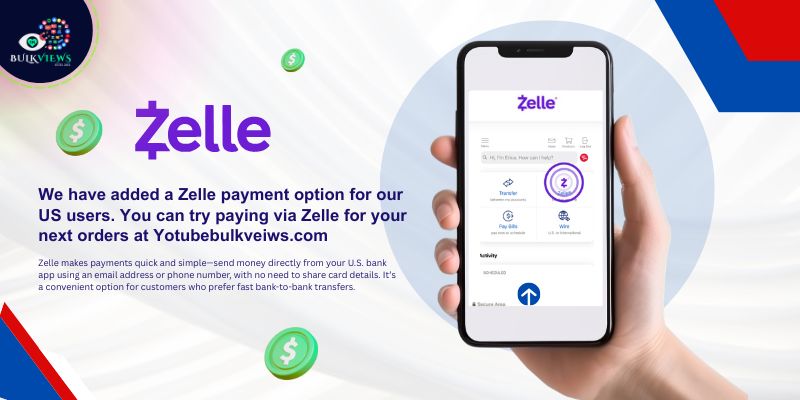
If you’re a US customer looking for a faster way to place your next order, we’ve added a new option: Zelle payments. That means you can complete checkout using a bank-to-bank transfer method that many people already use in their everyday banking apps.
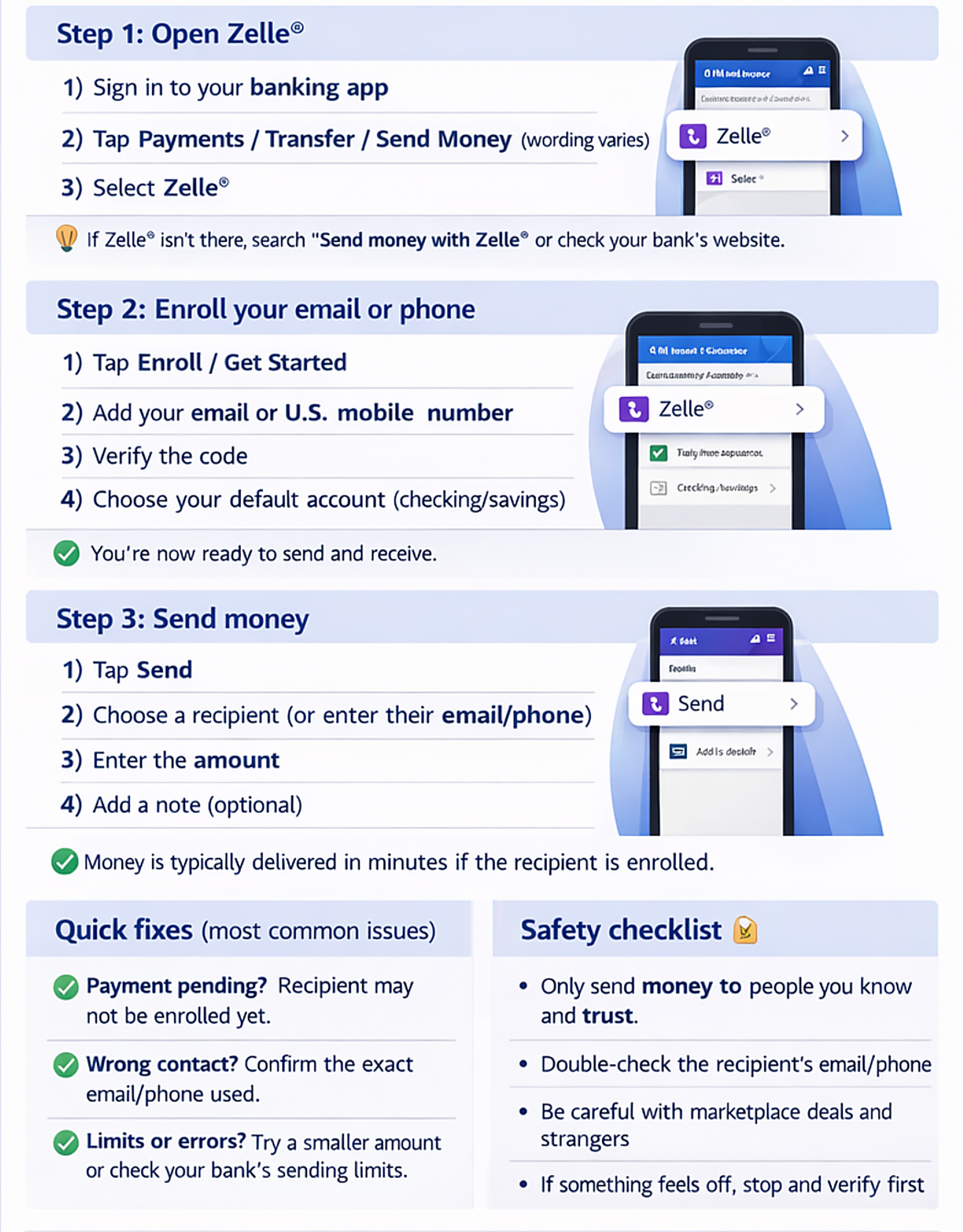
This guide explains what Zelle payments are, why it helps, and how to pay step-by-step when you order on YouTubeBulkViews.
Why we added Zelle payments
Zelle is popular in the US because it can be:
Fast (many transfers arrive quickly)
Convenient (often inside your banking app)
Simple (no extra wallets required)
For customers, that means a smoother checkout—especially if you prefer direct bank payments.
When Zelle is the best choice
Choose Zelle at checkout if:
You’re in the United States
You want a quick payment method
You prefer bank-to-bank payments for online orders
You want to avoid card issues like declines or extra verification (when available)
How to pay via Zelle on YouTubeBulkViews (step-by-step)
Step 1) Choose your package and go to checkout
Pick the service/package you want on YouTubeBulkViews.
Click Buy / Order / Checkout.
Step 2) Select Zelle as your payment method
On the payment page:
Choose Zelle (or the option that shows Zelle payment instructions).
Step 3) Send the exact amount using your bank app
Open your banking app (or Zelle app, if your bank uses it separately).
Tap Send and enter the exact amount shown at checkout.
Step 4) Use the provided recipient details
On the YouTubeBulkViews payment screen, you’ll see the Zelle recipient details (example formats):
Email/phone number used for Zelle receiving
✅ Double-check the recipient before you send.
Step 5) Add your Order ID/email in the note (recommended)
If your banking app allows a memo/note, add:
Order ID + your email used at checkout
This helps match your payment to the correct order faster.
Step 6) Confirm payment and wait for verification
After you send:
Return to the checkout page and follow any confirmation steps shown (some orders may request proof).
Once verified, your order moves forward.
Important tips to avoid delays
Send the exact amount shown at checkout (avoid rounding).
Use the same email at checkout that you’ll reference in your memo.
Keep a screenshot/receipt until your order status updates.
If your bank shows “pending,” wait a few minutes and re-check.
FAQ
Is Zelle available for all customers?
Zelle payments are typically best for US customers, and availability depends on your bank and account settings.
Do I need the Zelle app?
Many US banks have Zelle built into their mobile app. If yours doesn’t, you may need a separate setup.
How long does confirmation take?
This depends on your bank transfer speed and verification flow on the payment page. Following the steps above helps prevent delays.
Conclusion
Now you can place orders more easily because you can pay via Zelle for your next orders at YouTubeBulkViews. Just choose Zelle at checkout, send the exact amount using the recipient details provided, and add your Order ID/email note for faster matching.